Joining Smart Village Network
How to request membership, activate your invitation, and get your first sign-in.
Smart Village Network accounts are created by invitation. There is no public self-registration form, so the first step is always a membership request.
Request membership
- Open Members in the main navigation, then choose Become a Member. The Membership page also links to it.
- Complete the request form. Five fields are required: your first name, your last name, your email address, the name of the member entity (a village, a village group, a LAG, and so on), and the name of the representing organisation.
- Describe your community or your motivation in the message field. This is the text the team reads when reviewing your request.
- If you have a signed membership document, attach it. The form accepts images, PDF, Word, Excel, OpenDocument and plain-text files.
- Send the form.
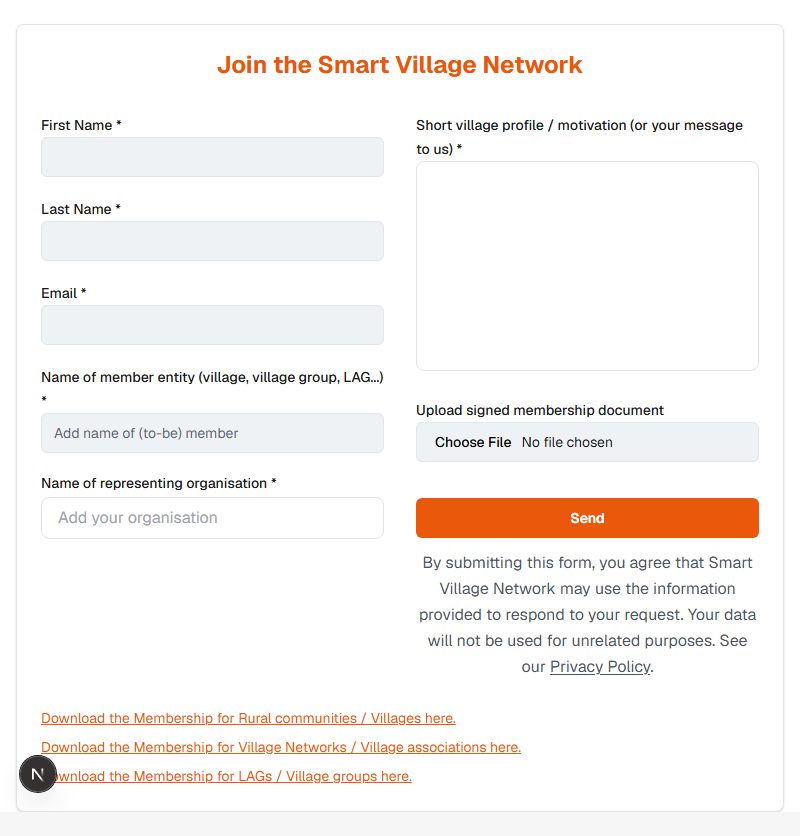
The same page offers membership confirmation letter templates to download, complete and sign.
Note No account is created by sending the form. Your request is read by a person, and an account is created only if the request is approved.
The Sign up page is a signpost rather than a form: it states that new accounts are created after a membership request and offers a single Join the network button.
Activate your invitation
When your request is approved, you receive an email containing an 8-digit code.
- Open the invitation page from the link in that email.
- Check your email address. Enter it if the page has not already filled it in.
- Enter the 8-digit code from the email.
- Choose a password of at least 6 characters, then confirm it.
- Submit the form.
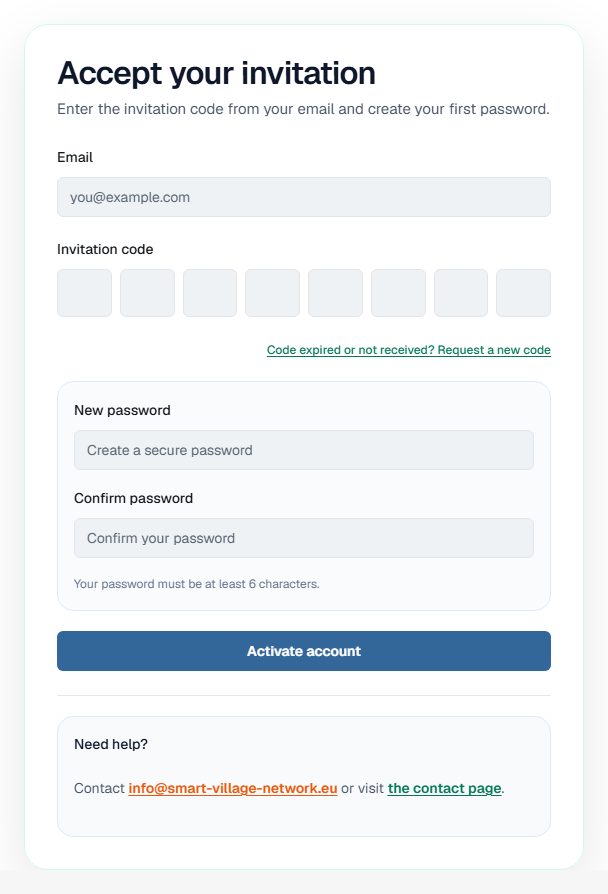
You can sign in with your new password as soon as the form is accepted.
Important Use the most recent code — each new request invalidates the previous one. If the code expired, resend it from the invitation page, then wait 30 seconds before requesting another.
If the invitation email does not arrive
| Situation | What to do |
|---|---|
| The email has not arrived | Check the spam folder, then resend the code from the invitation page |
| The code is rejected | Request a new code and use only the most recent email |
| The resend button is unavailable | Wait for the 30-second cooldown to pass, then try again |
| You cannot open the invitation link | Go to the invitation page directly and enter your email address and code by hand |
Once your account works, continue with Signing in.