Resetting your password
Recover access to your account by email code, then choose a new password.
Password recovery runs in two steps: request a code, then use that code to set a new password.
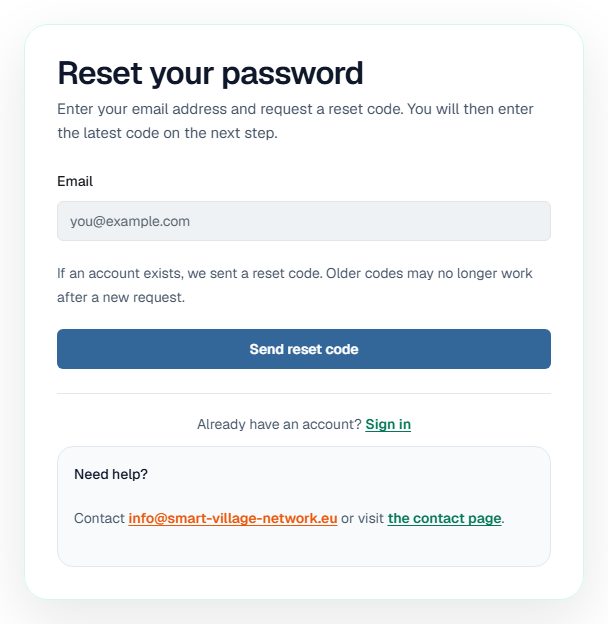
Step 1 — Request a reset code
- On the sign-in page, choose Forgot your password?.
- Enter the email address registered on your account.
- Choose Send reset code.
- Wait for the email.
The page confirms that a code was sent, whether or not an account exists — deliberately the same message in both cases, so the page cannot be used to discover who has an account.
Note A 30-second waiting period applies between requests. If you ask for codes repeatedly, the page asks you to wait before sending another one.
Step 2 — Choose a new password
- Open the reset screen reached from your email, or go to the password reset page.
- Check the email address — it is usually carried over from the previous step.
- Enter the 8-digit code from the most recent email.
- Choose a new password of at least 6 characters and confirm it.
- Submit the form, then sign in with the new password.
Warning Use the latest email only. Each new code invalidates the one before it, and the code expires if you leave it too long.
If the reset link or code is refused
Some email providers scan links automatically, which can consume a single-use link before you open it; the reset screen then explains that the link was already used or expired. Request a new code and work from the newest message.